PWA guide
How to use Rank Alert like a smartphone app
Rank Alert can be added to your home screen and opened like an app. On iPhone, this is required if you want to receive Web Push notifications.
What is a PWA?
A PWA lets you open a website from your home screen like an app, without installing it from an app store.
Prepare notifications
On iPhone, open the home screen web app and allow notifications inside that app.
Easy daily access
Launching Rank Alert from your home screen makes it easier to check rankings and settings.
iPhone setup
Use Safari, add Rank Alert to your home screen, then open it from the added icon.
STEP 1 Open Rank Alert in Safari
Open https://rank-alert.com in Safari on your iPhone.
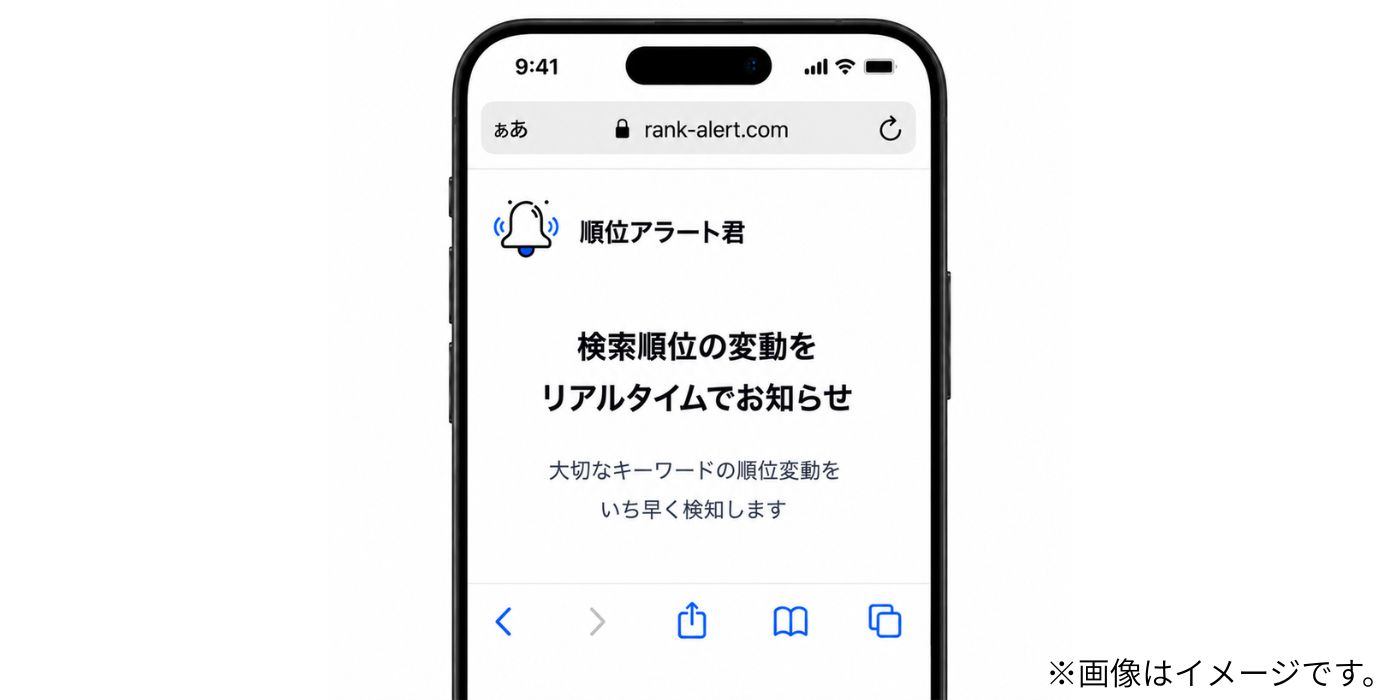
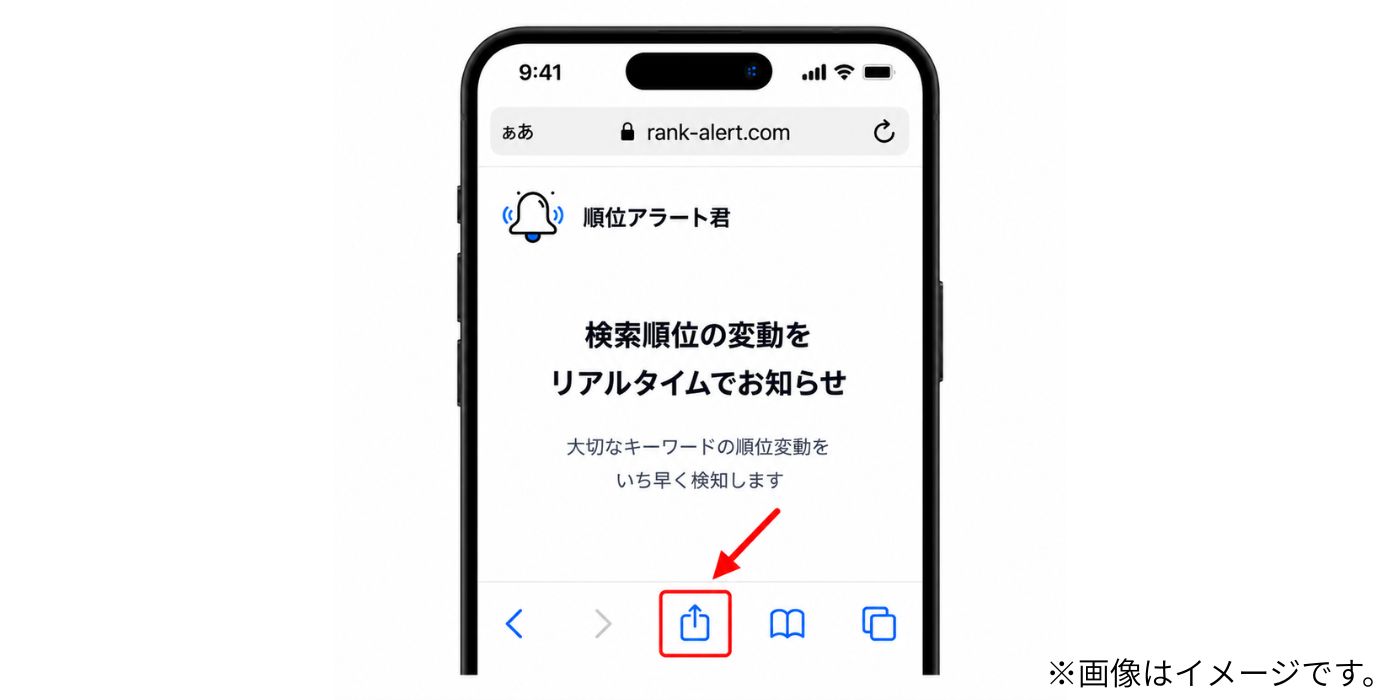
STEP 2 Tap the share button
Tap the share button at the bottom or top of Safari.
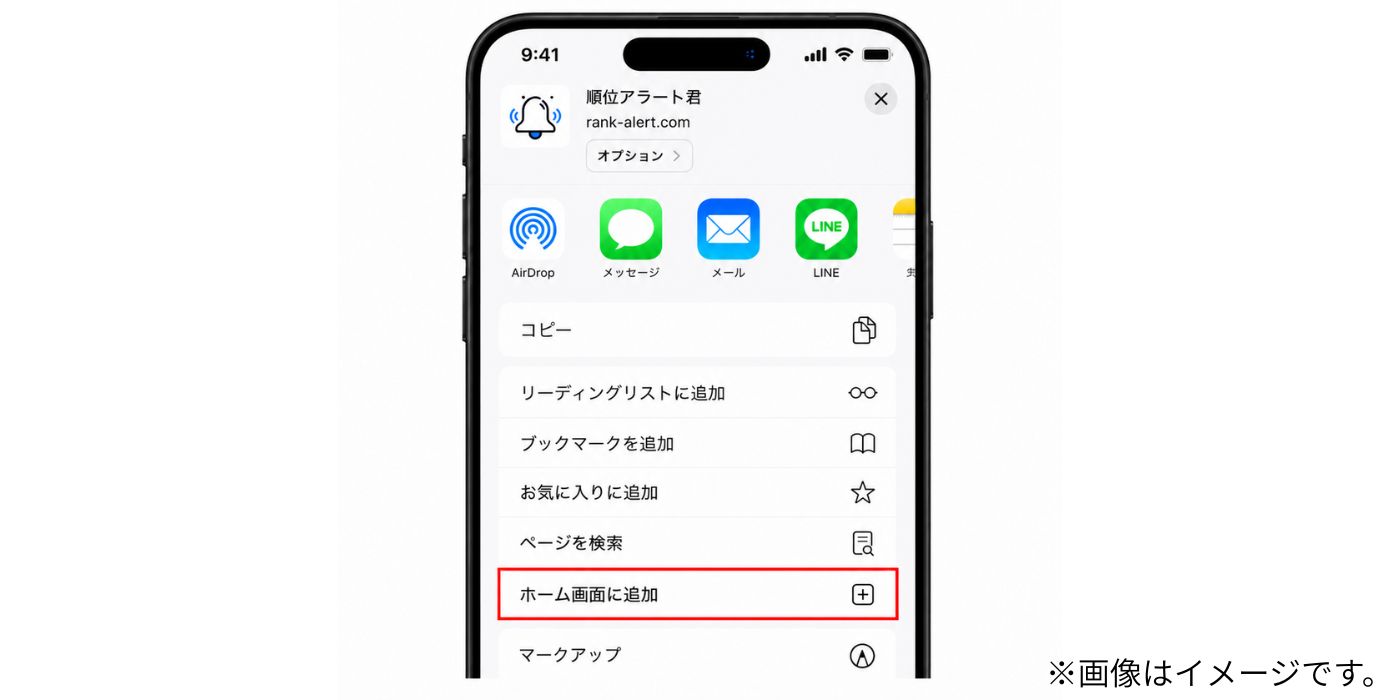
STEP 3 Tap Add to Home Screen
Choose Add to Home Screen from the share menu.
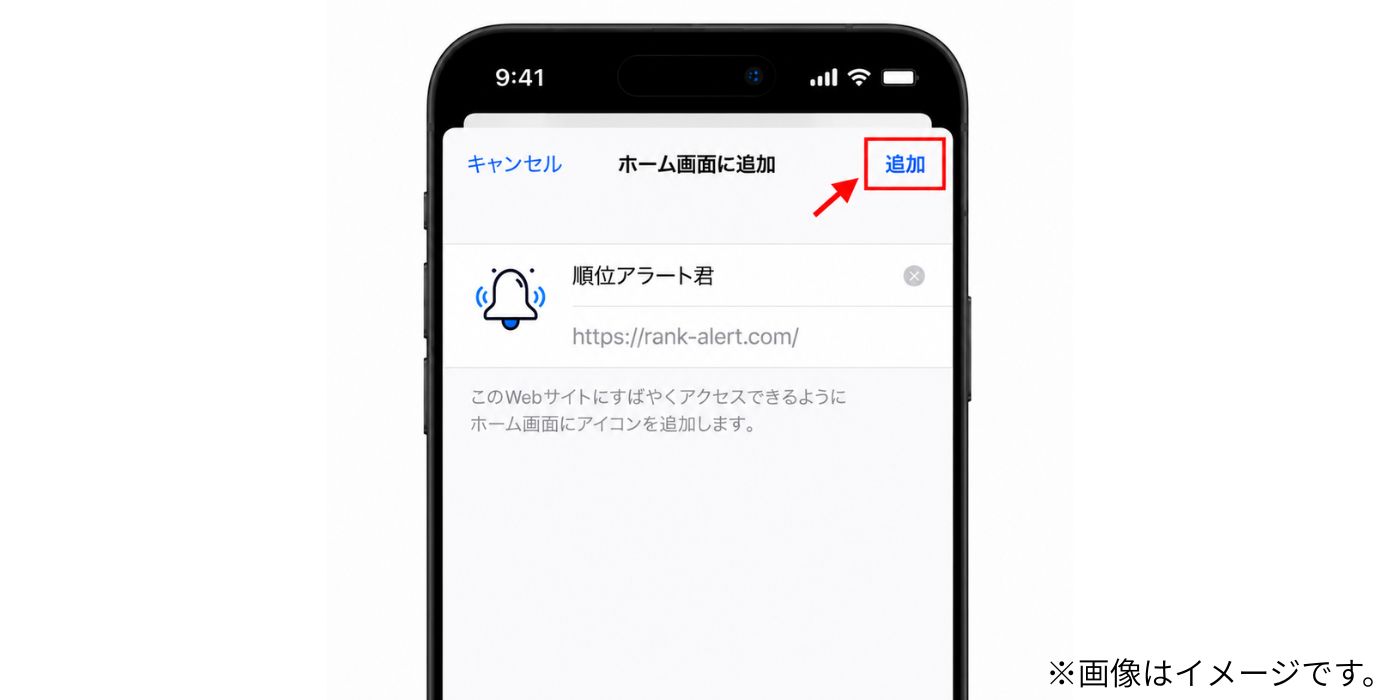
STEP 4 Tap Add
Confirm the app name and tap Add.
STEP 5 Open Rank Alert from the home screen
Launch Rank Alert from the icon added to your home screen.
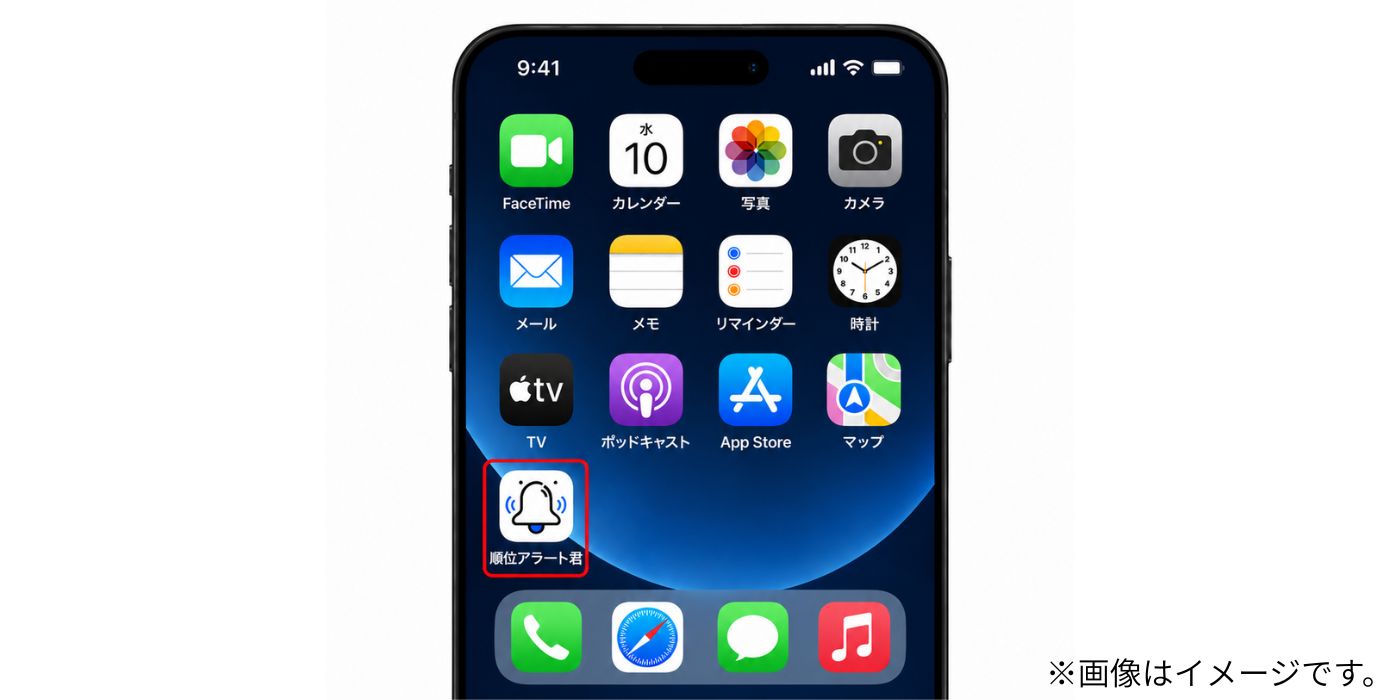
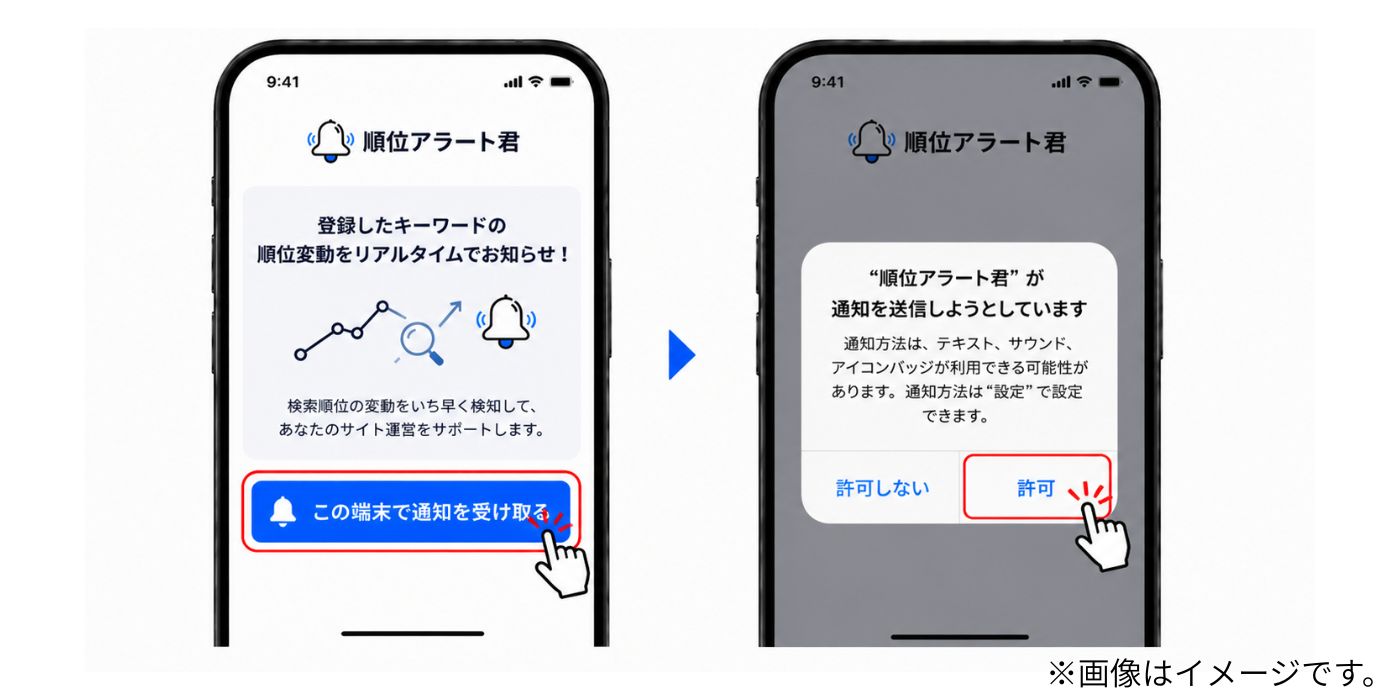
STEP 6 Allow notifications
Open the app from the home screen and allow notifications when prompted.
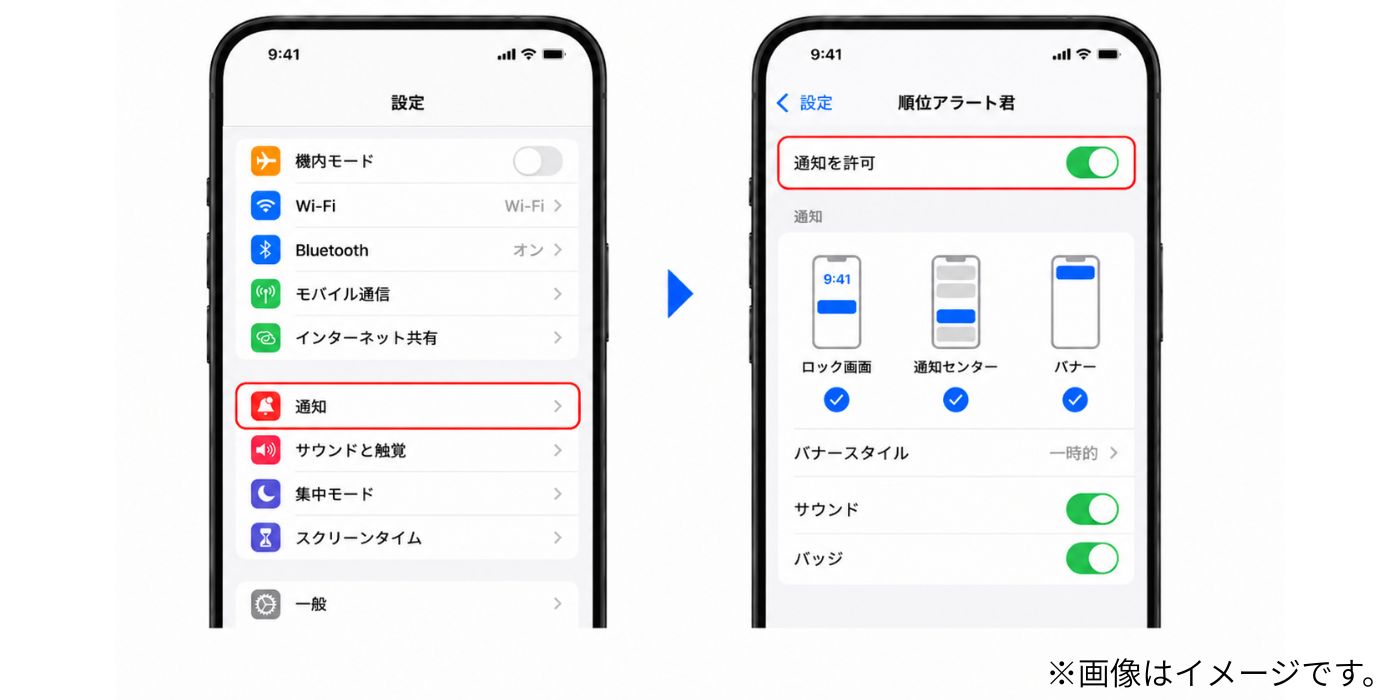
STEP 7 If you denied permission
If you denied notifications, open iPhone settings and allow notifications for the web app.
Android setup
Use Chrome for the most stable installation and notification experience.
STEP 1 Open Rank Alert in Chrome
Open rank-alert.com in Chrome. Some in-app browsers may not support installation or notifications.
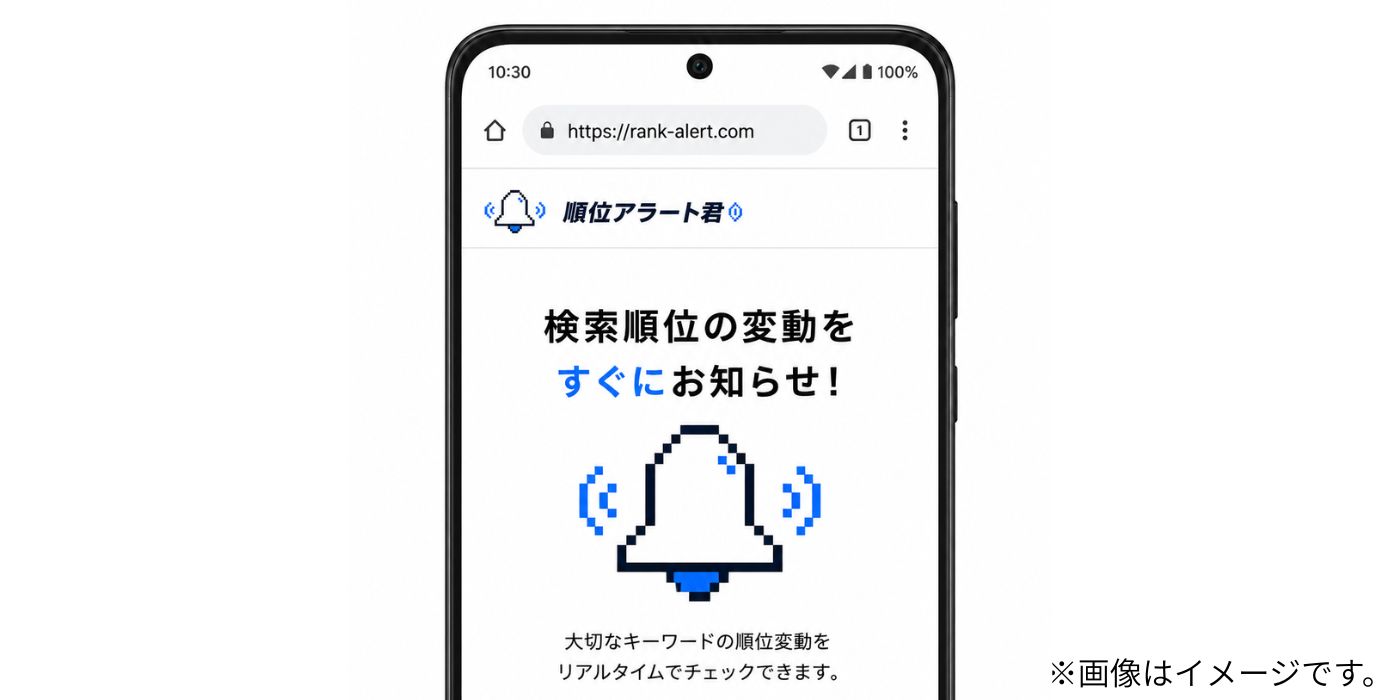
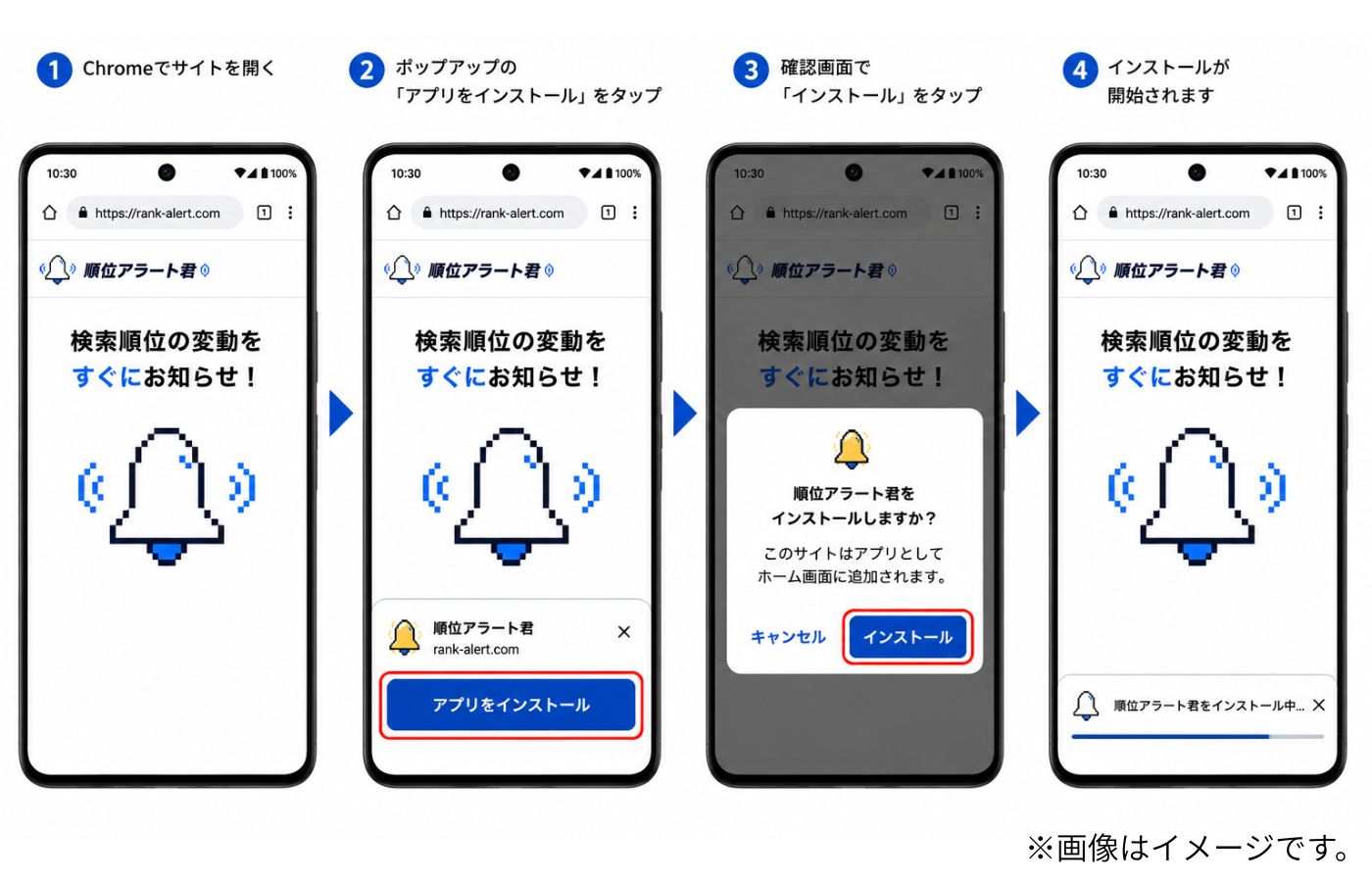
STEP 2 Install from the prompt
If the install prompt appears, tap Install app.
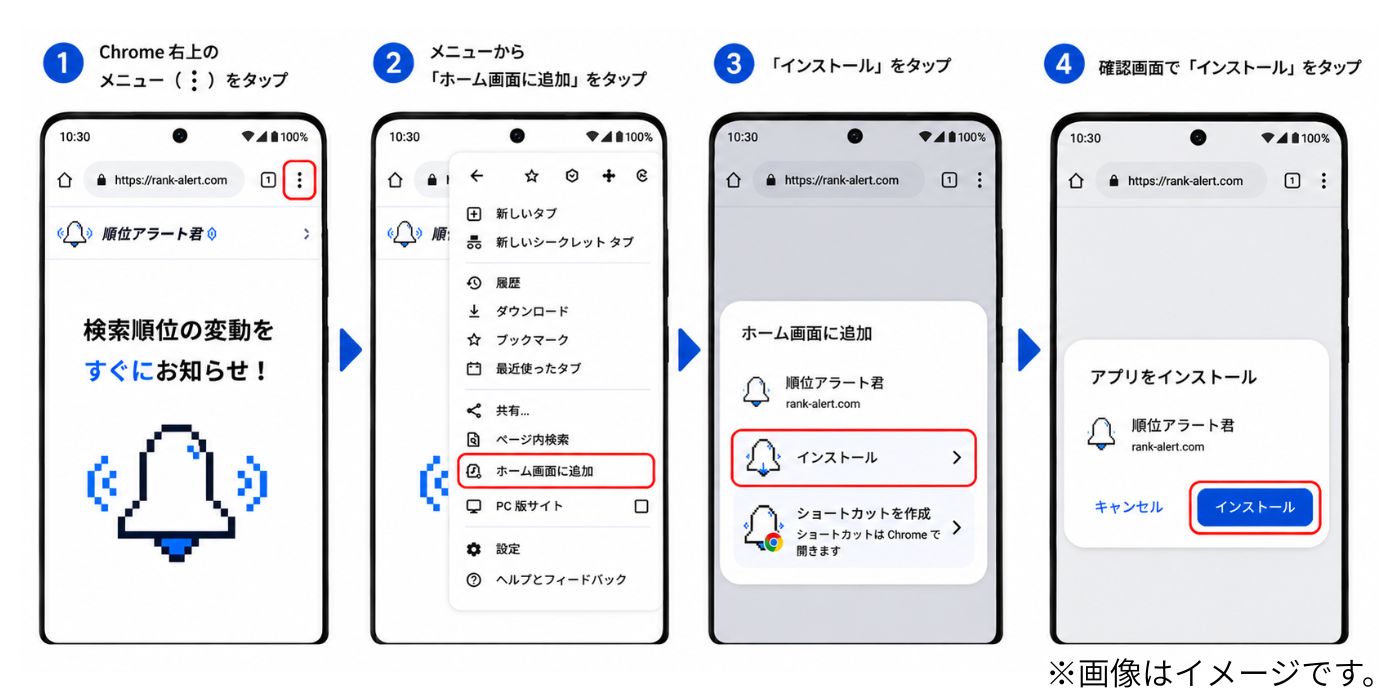
STEP 3 Use the Chrome menu if needed
If no prompt appears, open the Chrome menu and choose Add to Home screen.
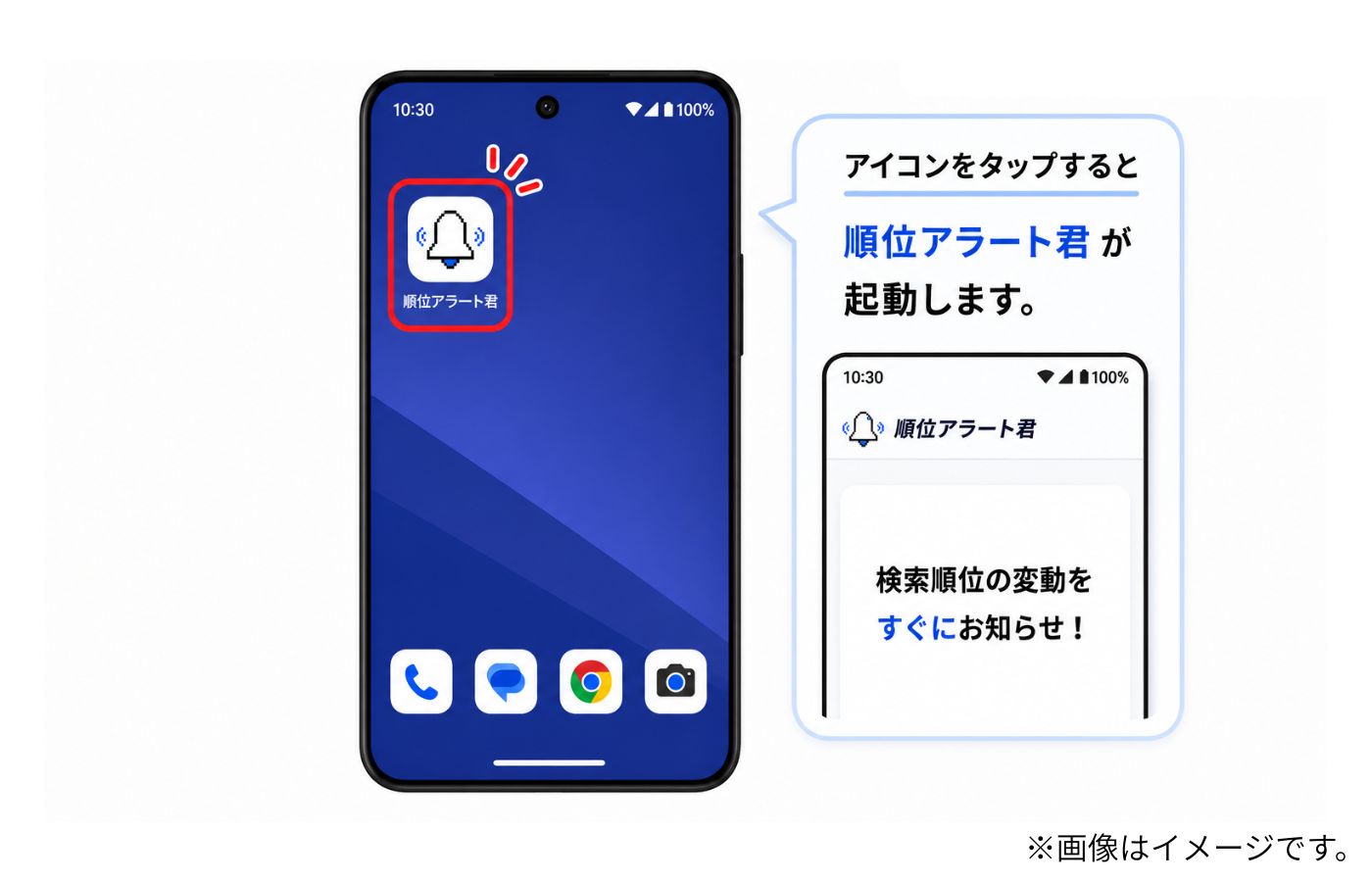
STEP 4 Open the app from the home screen
Tap the Rank Alert icon added to your home screen.
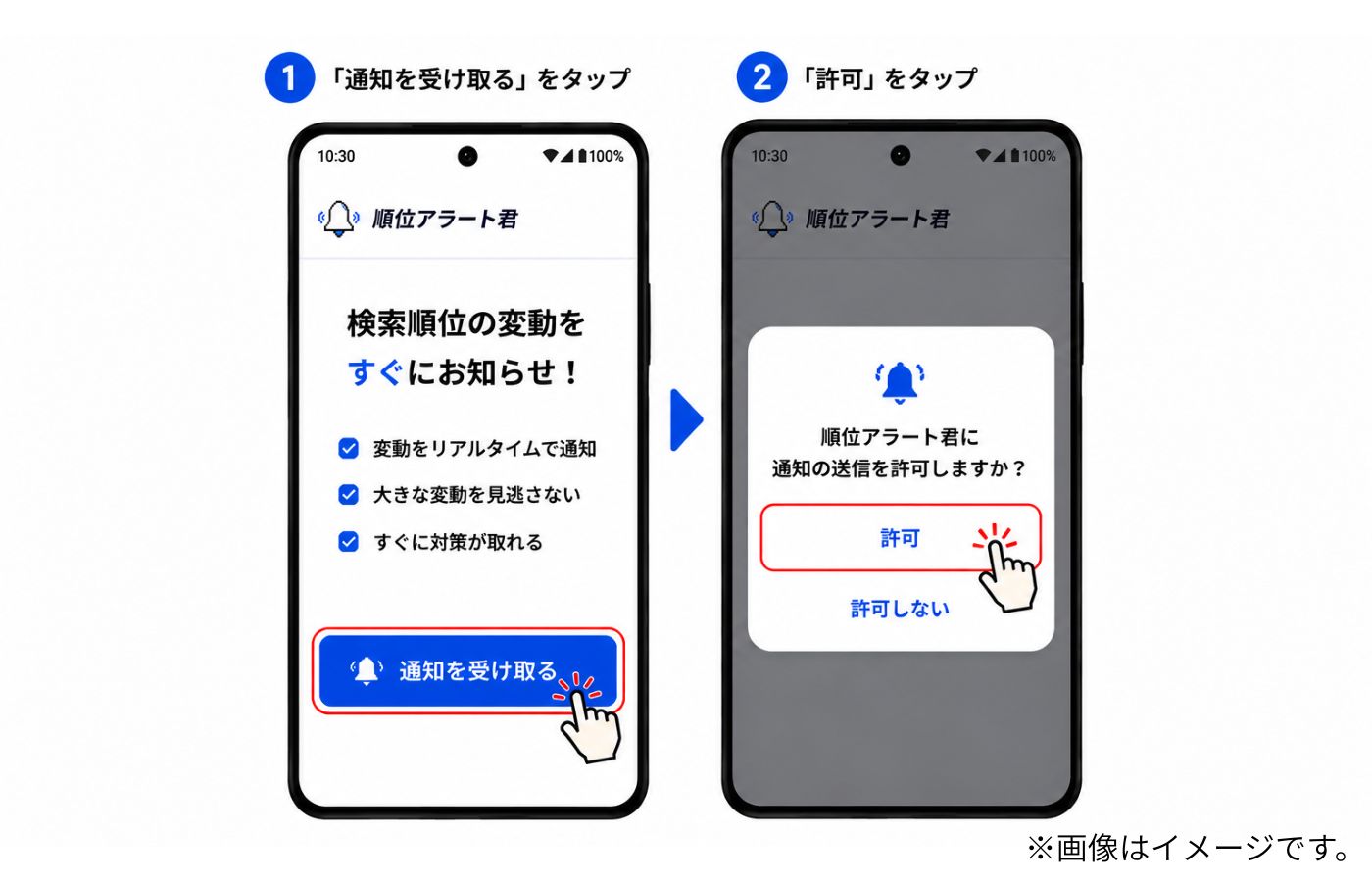
STEP 5 Allow notifications in the app
Tap the button to receive notifications on this device, then allow the browser permission prompt.
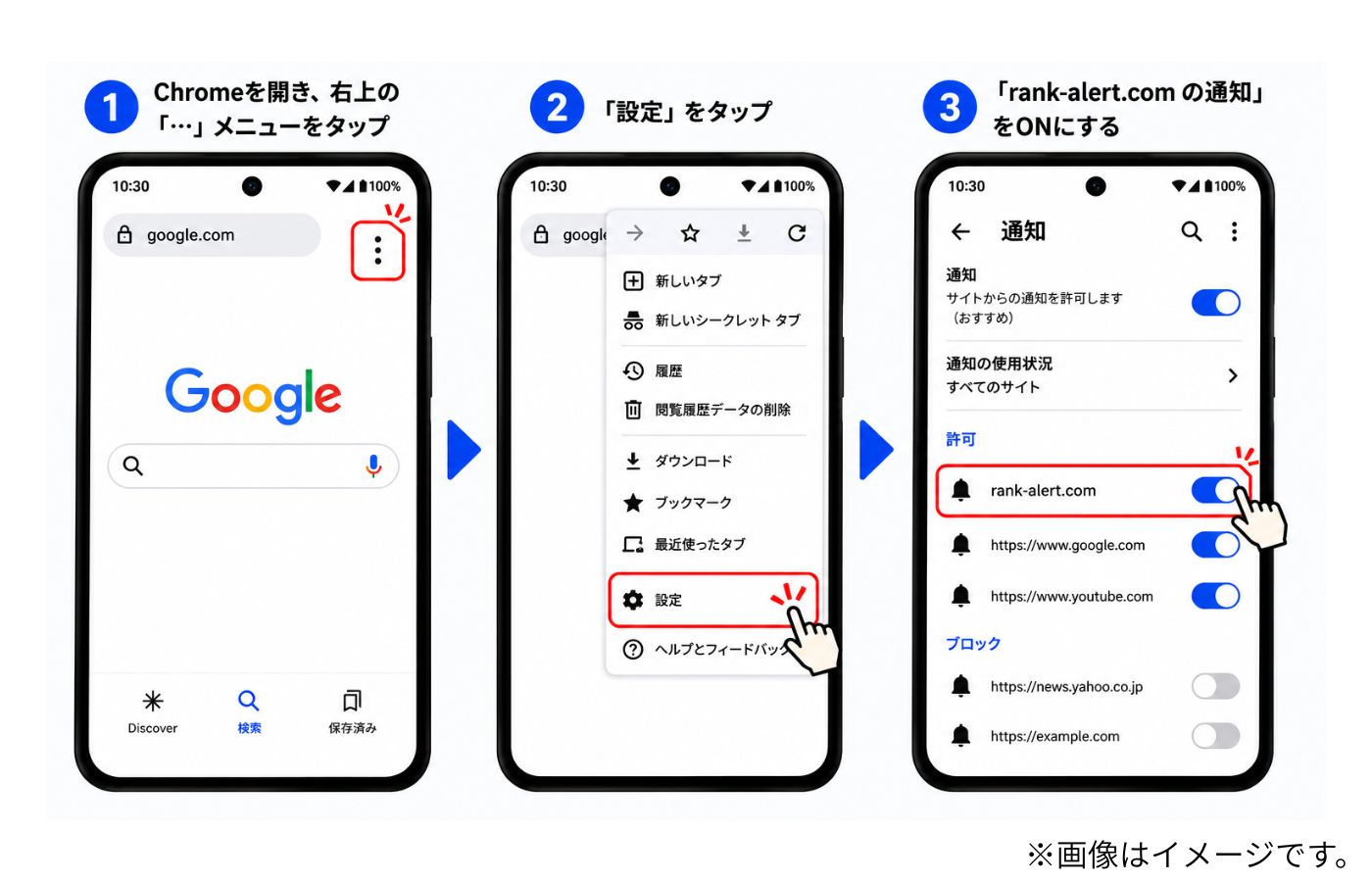
STEP 6 Check Chrome notification settings
If notifications do not arrive, check that rank-alert.com is allowed in Chrome notification settings.
How to test browser notifications
After enabling notifications, send a test notification from the Account page and confirm that it appears on your device.
STEP 1 Open Account and enable browser notifications
After logging in, open Account and tap the button to receive browser notifications on this device.
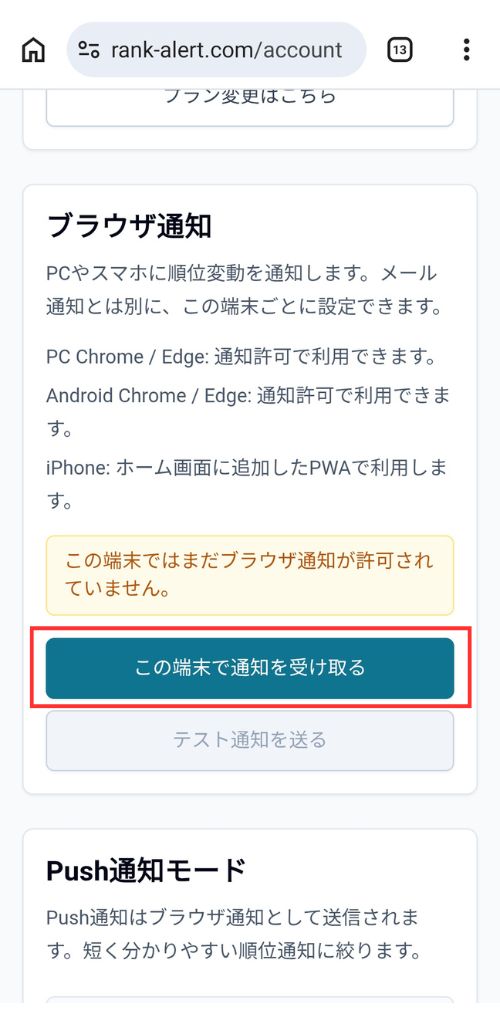
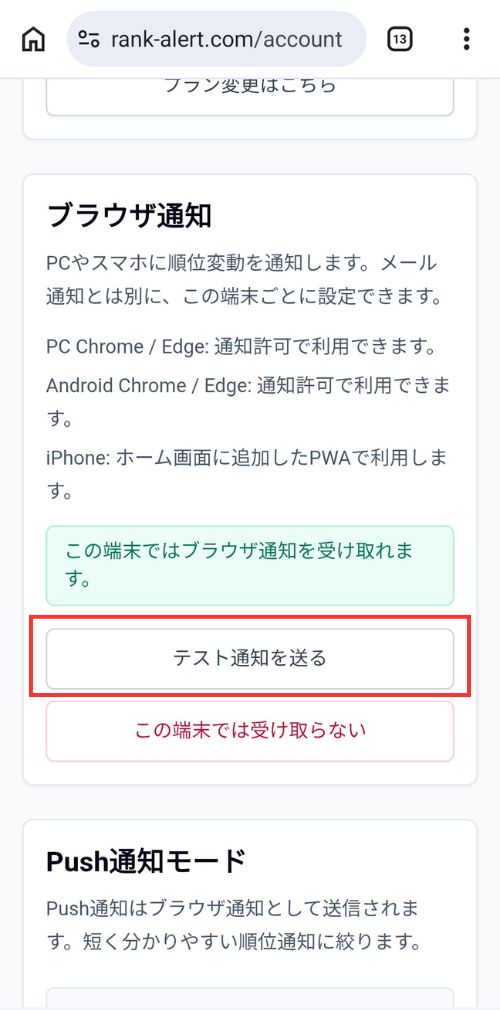
STEP 2 Send a test notification
Once notifications are enabled, tap Send test notification.
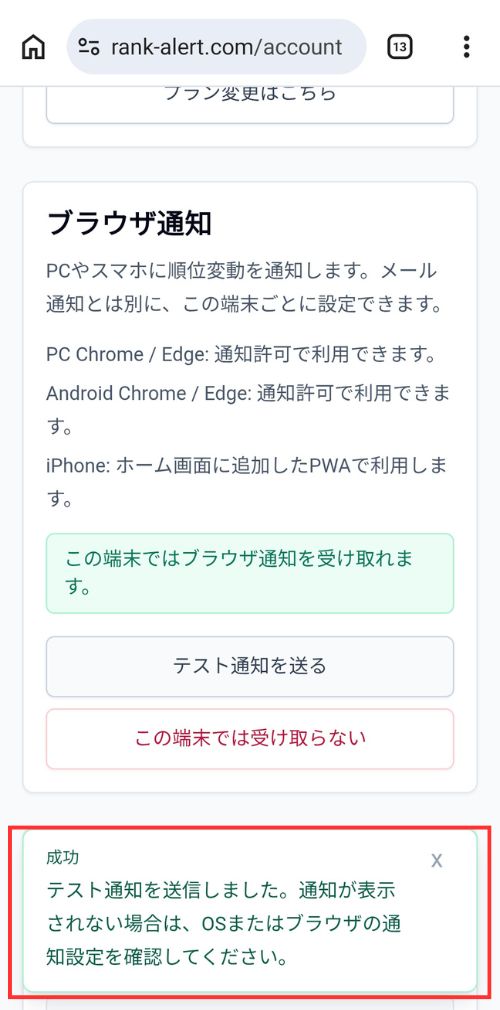
STEP 3 Check the success message
If the test notification was sent, the success message will be shown.
STEP 4 Confirm the notification appears
If the notification appears in the notification panel, your setup is working.
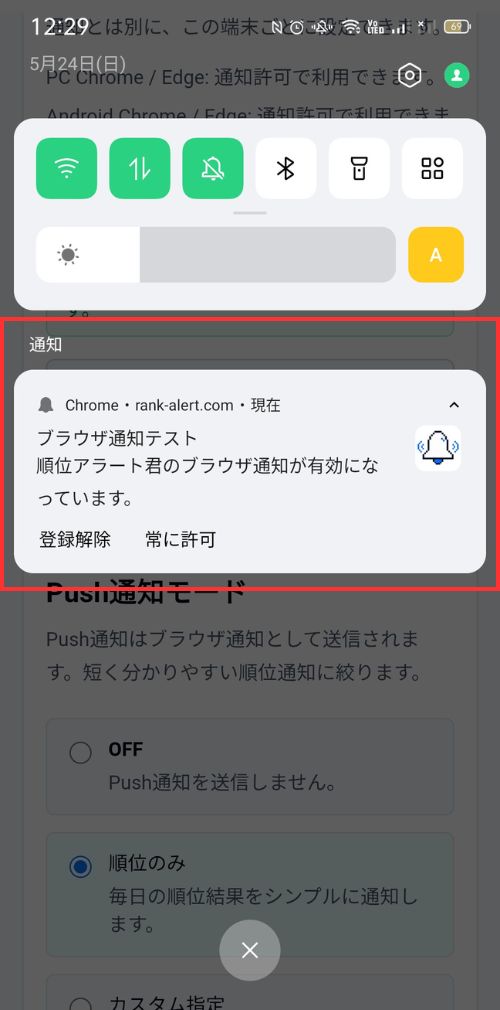
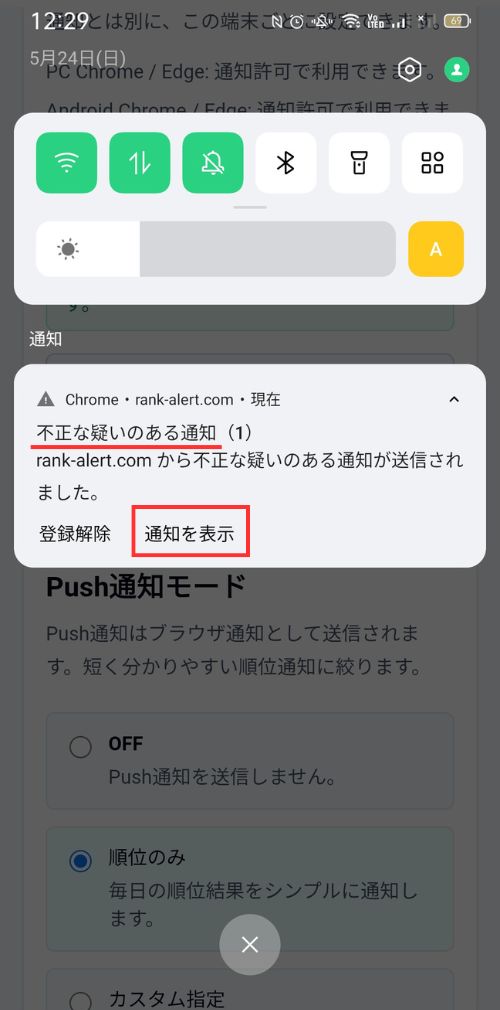
If your phone shows a suspicious notification warning
Tap to display the notification. This is a browser-side confirmation message.
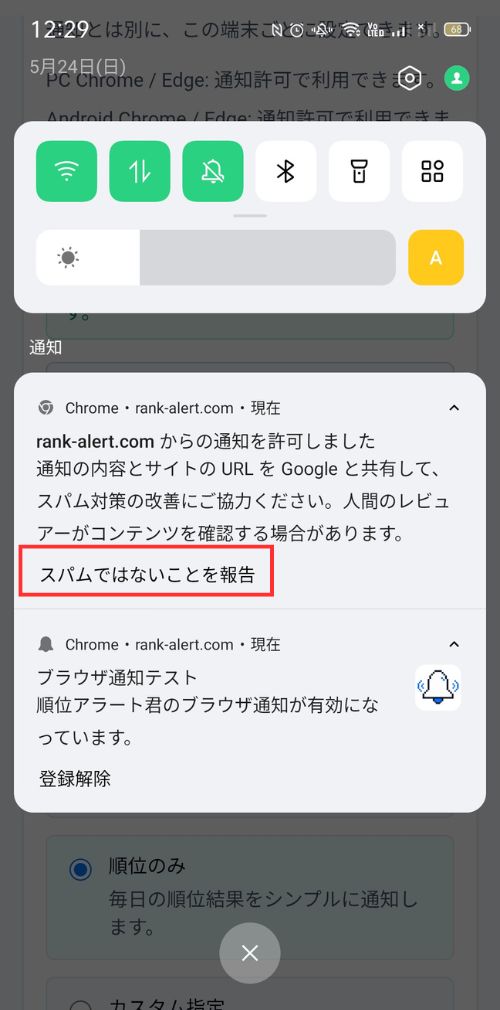
If your phone asks whether it is spam
Mark it as not spam so future Rank Alert notifications can appear normally.
Supported versions
Notes
- On iPhone, opening the normal Safari tab alone is not enough for Web Push notifications.
- You need to launch Rank Alert from the home screen icon.
- Some in-app browsers may not support installation or notification permission correctly.
- Notification behavior may differ depending on device, OS, and browser settings.
- Private browsing may prevent installation or notification permission from working normally.
Add Rank Alert to your home screen first.
This makes Rank Alert easier to open every day and prepares your device for browser notifications.
Create free accountFAQ
Can iPhone receive notifications?
+
Yes, on iOS 16.4 or later. Rank Alert must be added to the home screen and opened from that home screen icon.
Do I need to install it from the App Store?
+
No. Rank Alert is a web app that can be added to your home screen and used like an app.
Can Android use it?
+
Yes. We recommend the latest version of Chrome. Some in-app browsers may not support installation or push notifications.
Do I need to add it to the home screen to use notifications?
+
On iPhone, yes. On Android and PC, browser notifications may work directly, but installing the app can make daily use easier.
What should I check if notifications do not arrive?
+
Use Chrome or Edge where possible, enable notification permission, check device notification settings, battery saving settings, and focus mode.